
The Dashboard is the first page you see when you sign in. Needs attention at the top lists what is waiting for you, and your widgets below show sales, picking, inventory, platforms and notes at a glance.
Needs attention
Rows are grouped by urgency: Action needed (red) is something to fix, Awaiting your decision (amber) is waiting for you to choose, and Up next (blue) is the day-to-day work in front of you. When nothing is waiting, the box is not shown.
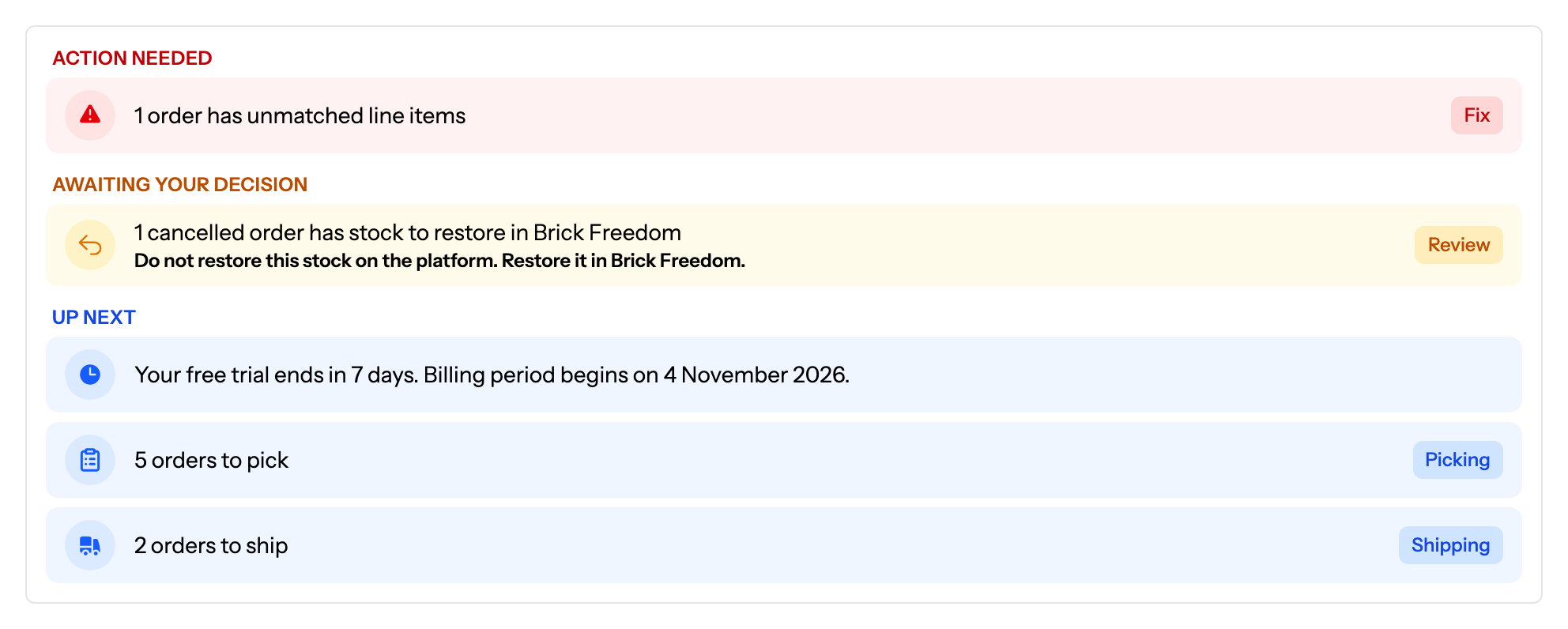
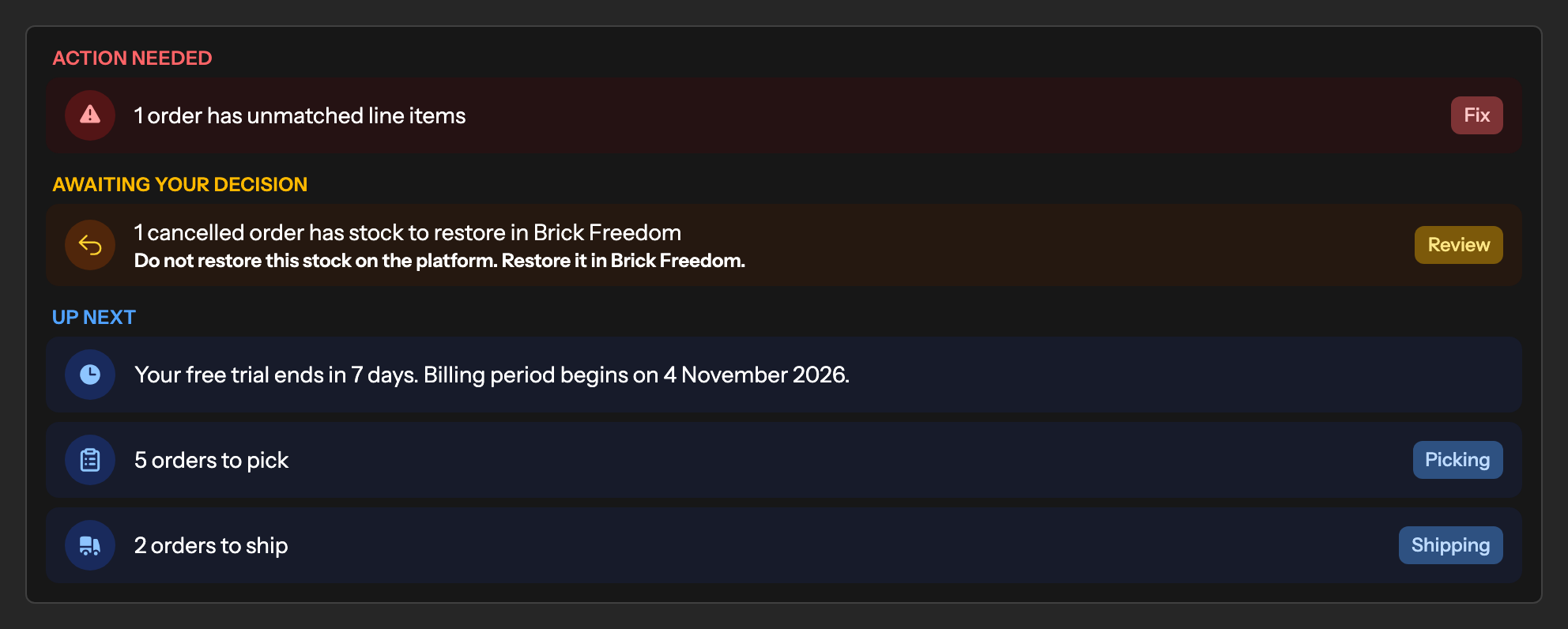
What each row means
| Row | Group | Button | When it shows |
|---|---|---|---|
| Orders have unmatched line items | Action needed | Fix | An order has a line Brick Freedom could not match to a lot in your inventory. |
| Orders have fulfilment issues | Action needed | Resolve | Part or all of a line on an order could not be taken from inventory, because there was not enough in stock or the line did not match a lot. Only orders not yet shipped are counted, so an order drops off once it is shipped or cancelled. |
| Days left on your free trial, add a payment method | Action needed or Awaiting your decision | Add payment method | Your trial is running with no card on file. It moves to Action needed in the last 7 days. |
| Lots have price changes awaiting approval | Awaiting your decision | Review | Repricing has price changes waiting for your approval. |
| Cancelled orders have stock to restore in Brick Freedom | Awaiting your decision | Review | A cancelled order's stock has not been put back yet. Restore it in Brick Freedom, not on the platform. |
| Your free trial ends | Up next | none | Your trial is running and a card is on file, so billing starts when it ends. |
| You have unused vouchers | Up next | Vouchers | You have an unused voucher and none is running. |
| Orders to pick | Up next | Picking | Orders that are paid or being picked. Picking opens with every order you can start picking ticked. |
| Orders to ship | Up next | Shipping | Orders that are packed and ready to post. Shipping opens with every one ticked. |
Fix and Resolve open Orders showing just those orders. Orders imported from before you started using Brick Freedom are never counted.
What Staff Members see
A Staff Member sees a row only if they can open the page its button goes to. The trial and voucher rows are for the store owner only.
Arranging your widgets
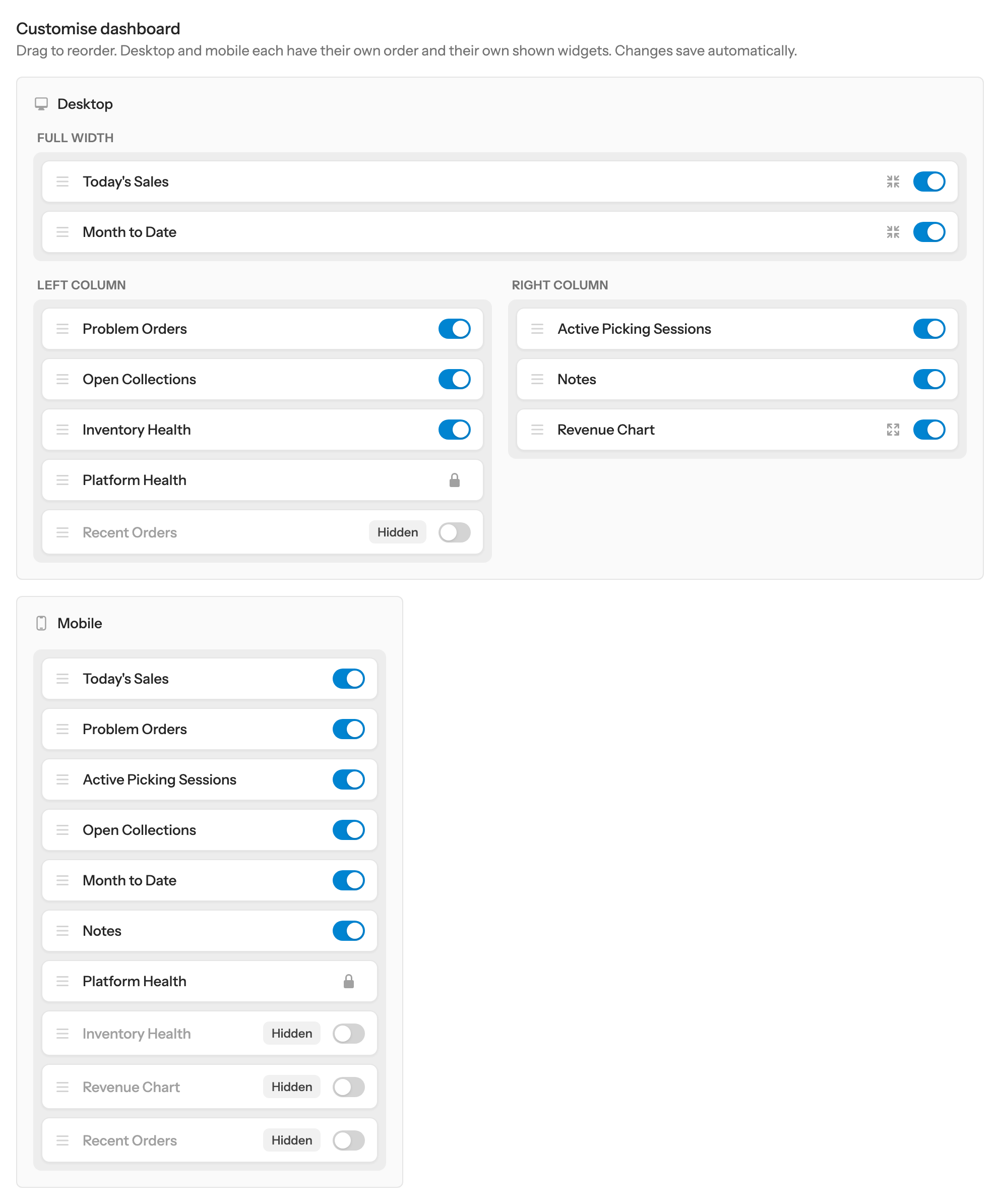
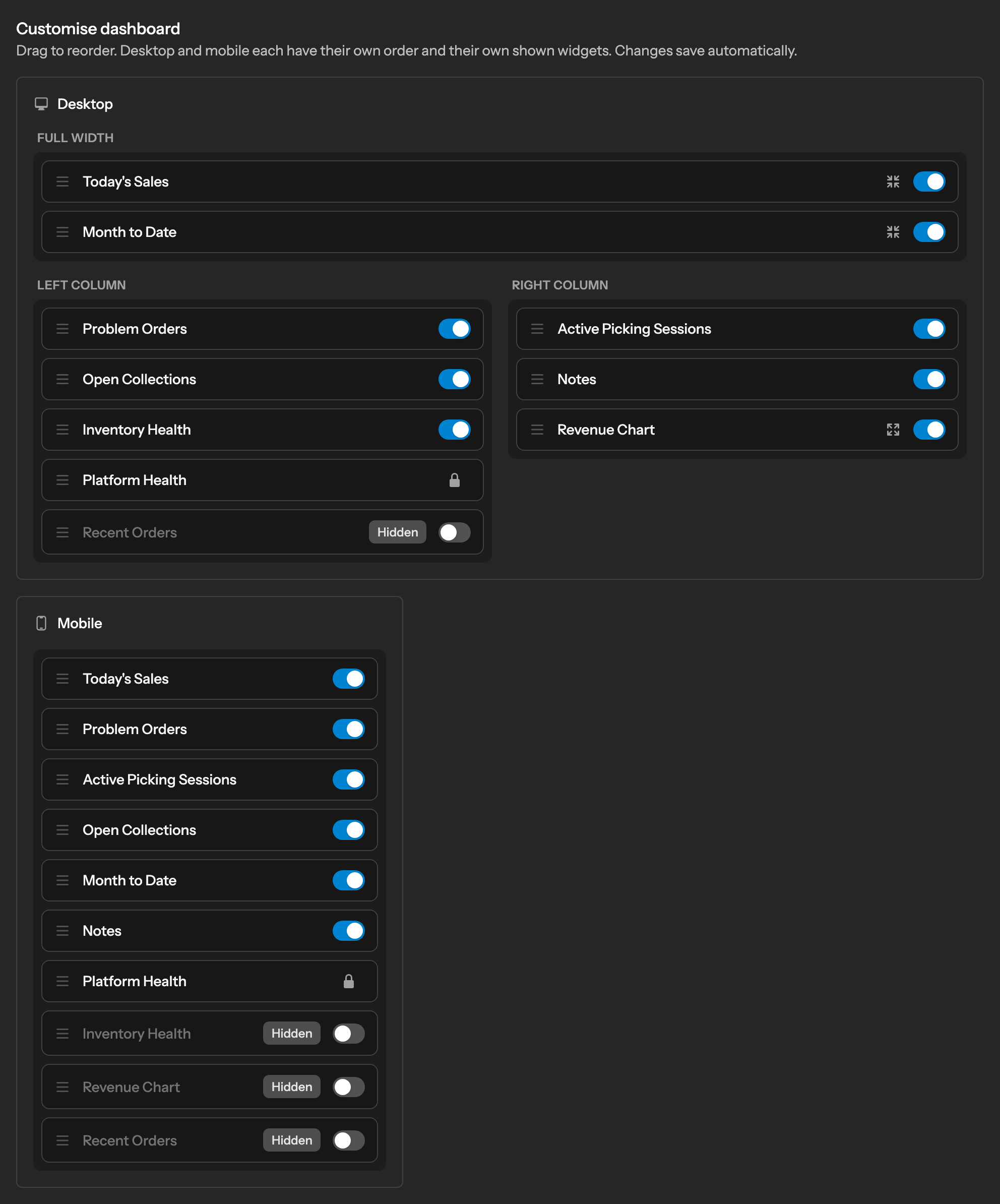
Each person in your store has their own layout, so changing yours does not change anyone else's. You have two: Desktop for wider screens and Mobile for phones. Each has its own order and its own shown widgets.
- Select Customise Dashboard at the top right of the Dashboard. On a phone it is the sliders icon next to Help.
- Drag a widget by its handle to move it. In Desktop, widgets move up and down or into the other column. In Mobile, they move up and down one list.
- Use the switch on a widget to show or hide it in that layout. Platform Health is always shown.
- On Today's Sales, Month to Date and Revenue Chart, choose Full width or Half width.
- Select Done. Your changes are saved as you make them.
Reset puts both layouts back to how they start. It asks you to confirm first.
If a widget is missing
It may be hidden in your layout for this screen size: select Customise Dashboard and check Desktop or Mobile. Otherwise, some widgets need a permission, and some appear only when there is something to show.